- Give the network name and the password together, in text a guest can copy.
- A photo of the router label is a backup at best, because the label is often wrong or unreadable.
- Keep a printed card in the home, because the guest page itself needs a connection to open.
The taxi drops your guests at the door, they carry the bags up, and before they have found the bathroom one of them says: “What’s the Wi-Fi?” It is the first question of almost every stay, and if the answer is not in front of them in the first minute, it arrives in your messages.
The fix is small. It is about where the password lives, how it is written, and what happens when the first plan fails.
Put it where guests look first
Guests do not read your whole guide on arrival. They look for two things: how to get in, and how to get online. So the Wi-Fi sits near the top of whatever you send, right after the arrival steps.
In practice that means:
- In the guest page or message they open when they arrive, not in the middle of a long welcome text.
- On a printed card in the home, at the place guests end up first: by the door, on the kitchen counter or next to the sofa.
- Not only in the booking confirmation weeks earlier. Nobody scrolls back that far.
If you want the whole list of what belongs in the first hour, the house manual checklist has it in order.
Why a photo of the router label is not enough
Many hosts send a picture of the sticker on the router. It is quick, and it is better than nothing. It also fails in several ways:
- The label shows the factory password, which may not be the one you set later.
- The text is tiny, and on a phone screen a zero looks like the letter O.
- Guests cannot copy text out of a photo, so they type a 16-character string by hand and get it wrong twice.
- Some routers print two networks, one for each frequency, and the guest picks the wrong one.
Write it out as plain text instead. Put the network name on one line and the password on the next, and label both. If the password contains characters that are easy to confuse, such as 0 and O or 1 and l, add a short note saying which is which.
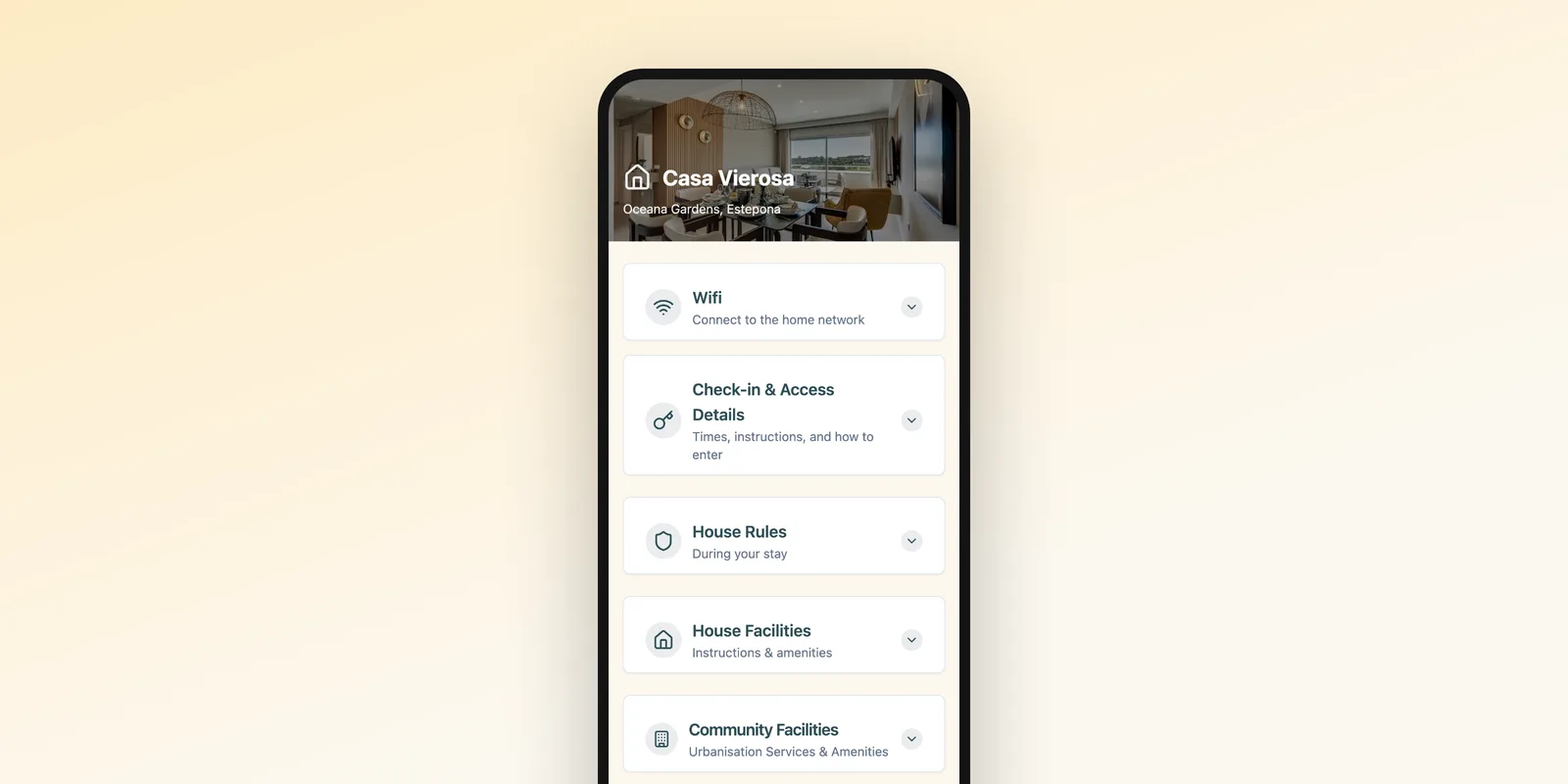
Better still, make the password easy to copy. On a guest page the password sits next to a copy button, so the guest pastes it into the Wi-Fi settings and does not type anything. That is the idea behind our Wi-Fi sharing section.
Choose a password a stranger can type
You will change this password more often than you think, so it pays to make it easy to enter on a phone:
- Use three or four unrelated words, or a short phrase, rather than a random string of symbols.
- Avoid characters that need a second keyboard screen, such as brackets and backslashes.
- Keep it case-consistent. A password that mixes capitals in odd places gets mistyped.
- Do not reuse the password from anything else you own. Guests are strangers, and the next guests may have the same password you gave the last ones.
Paper is better than a screen for one thing here: a guest who is holding a card can read the password aloud to a partner across the room. Keep that in mind when you design the card.
QR codes for the network
Most phone cameras can join a Wi-Fi network from a QR code. The guest points the camera at the code, taps the prompt and is online without typing. You can make one for free with any Wi-Fi QR code generator: you enter the network name, the password and the security type, and it gives you an image to print.
Some honest limits:
- It works well on a printed card or a small frame. On a guest page it adds little, because the copy button already does the job and a guest cannot scan a code on the same phone that shows it.
- Older phones and some tablets do not read it, so always print the name and password under the code.
- If you change the password, the code is wrong. Remake it and reprint it the same day.
Treat the QR code as a shortcut for the guest standing in your living room, not as the plan itself.
A guest network, if your router has one
Many routers can run a second network just for visitors. If yours can, use it:
- Guests are kept away from your own laptop, printer, cameras and smart speakers.
- You can change the guest password after every stay, or every month, without touching your own.
- If a guest does something silly online, it is not your main connection that gets blocked.
Name it so nobody has to guess. “Casa Vierosa Guest” works. “Router_5G_2” does not. If the router shows both a guest and a main network, say in the instructions which one to use and that the other one is not for them.
If you manage a rental with a router you cannot reach, such as a building-wide connection, say that too. A line like “the network is shared with the building, so speeds drop in the evening” saves you a complaint.
The plan for when it does not work
Things go wrong in a few predictable ways, and each of them can have a line on your page:
- The password was changed. Update it in one place, and tell guests who are already on their way.
- The router has been unplugged. Say where it is and which light should be on. A line such as “The router is in the cupboard in the hall, green light means it is working” ends many calls.
- The guest has no data when they arrive. This is the one people forget. A guest page needs a connection to open, and a guest who has just landed abroad may have none. That is why the printed card matters: it works when nothing else does.
Put the network name, the password and your phone number on that card. Our post on printed welcome books and digital guides explains why this small card is the one piece of paper that is worth keeping.
Where this fits in your guest information
The Wi-Fi is one section of several: arrival, the house rules, how the appliances work, local tips. It is the shortest of them and the most read, which is why it deserves to be the easiest to find.
On a guest page, the Wi-Fi sits in its own section with the password ready to copy, and you can change it once when you change the router. If you run a holiday home on your own, our page for holiday home hosts shows how the rest of the page fits together. Guests still need the printed card as a backup, so do both.
FAQ
Where should I put the Wi-Fi password for guests?
Put it in two places. The first is the guest page or message they open on arrival, as text they can copy. The second is a printed card in the home, near the entrance or the sofa, for the moment their phone has no signal.
Is a QR code a good way to share Wi-Fi?
It helps on a printed card, because most phone cameras can join the network from it without typing. It is a shortcut, not the only method, so always print the name and password next to it for guests whose phone does not scan it.
Should I set up a separate guest network?
If your router supports it, yes. A guest network keeps your own devices, cameras and smart home gear away from strangers, and you can change its password without touching anything else. Tell guests which of the two networks to use, because routers often show both.
The GuestPorta team builds digital guest pages for hosts and property managers, and writes about guest communication for short-term rentals.